
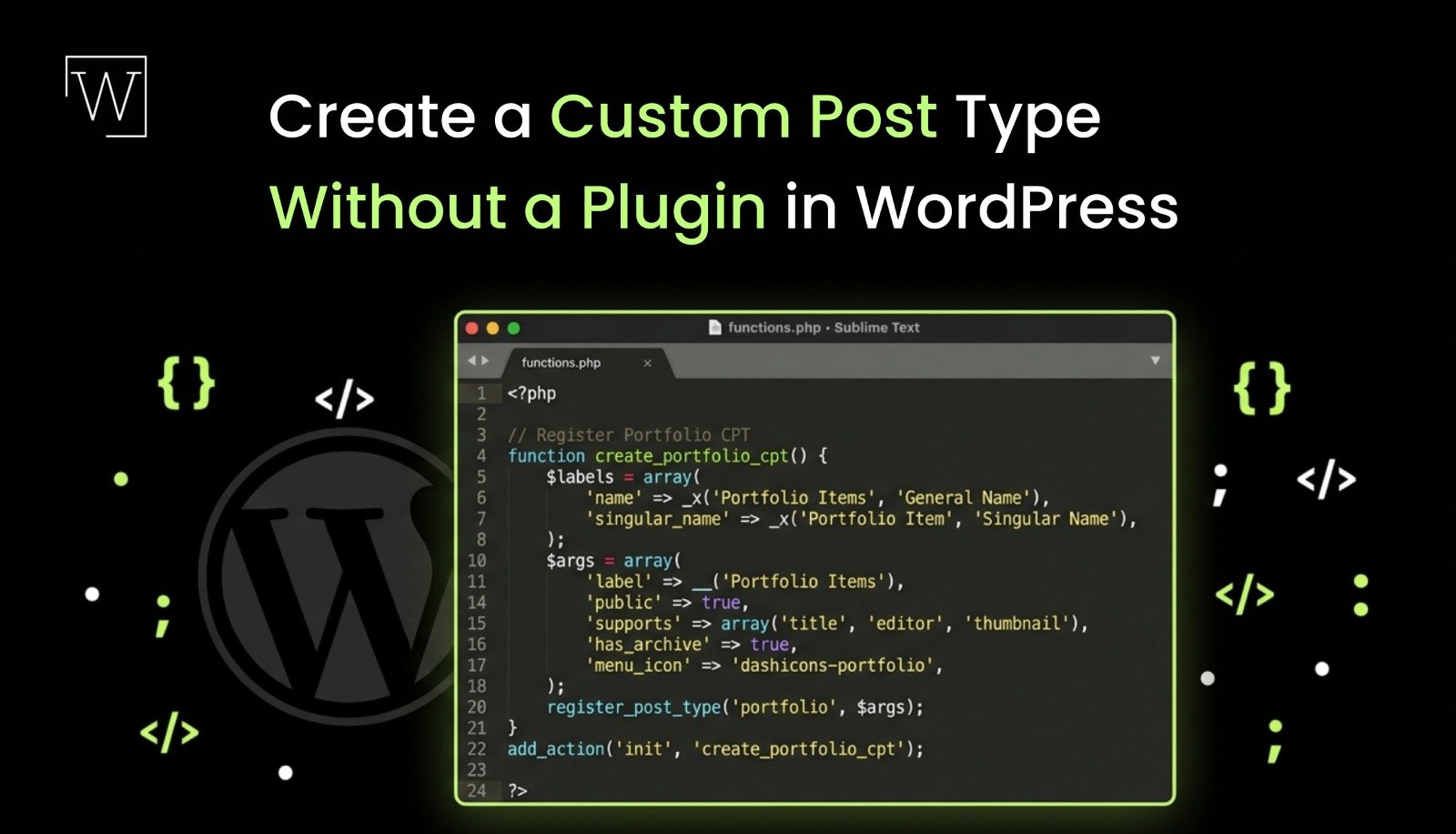
Do you really need another plugin just to create a custom post type?
No. You do not need anything. WordPress has everything you need built-in. When you use WordPress without a plugin you have control over your content. Your website loads faster. The code is cleaner.
By following this guide you will learn:
- How to Understand what custom post types do
- How to Decide where to put your code and why it matters
- How to Register a custom post type step by step in detail
- How to Add a custom taxonomy to it
- How to Display it on the front end without breaking anything
Lets break it down in following steps.
Why do you need to skip the plugin?
This is perfect for developers and agencies that manage client sites. It is also good for anyone who is building a custom theme or plugin from scratch.
What you will need:
- Access to your WordPress site files via FTP, cPanel or a local development environment
- A child theme already set up if you are using functions.php
- You need to be comfortable to code with PHP.
You do not need to be a high end developer. You will be pasting and editing code.
Step 1: Decide Where to Put the Code on your build
This is where most tutorials skip a warning.
You have two options for WordPress:
- Your child themes functions.php.
This is quick and easy.
If you ever switch themes your custom post type disappears along with all its content.
- A custom plugin.
This is the choice for WordPress.
Your custom post type survives theme switches.
It stays completely independent from your design layer.
For client sites or anything that is production ready go with a custom plugin for WordPress. It takes thirty seconds. Saves real headaches later.
Step 2: Register Your Custom Post Type
Open functions.php file in your child theme.
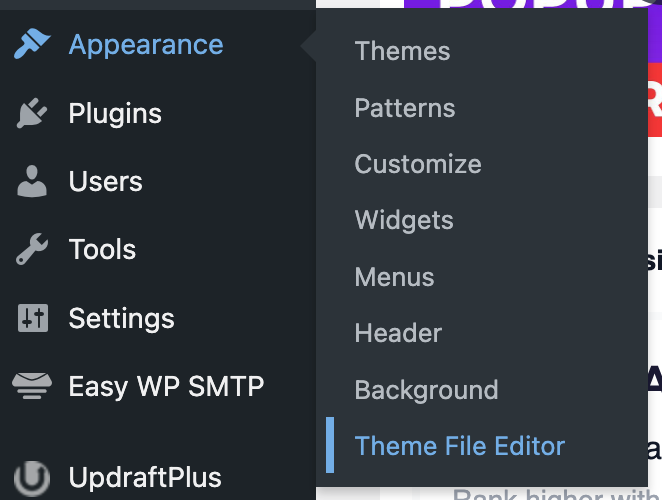
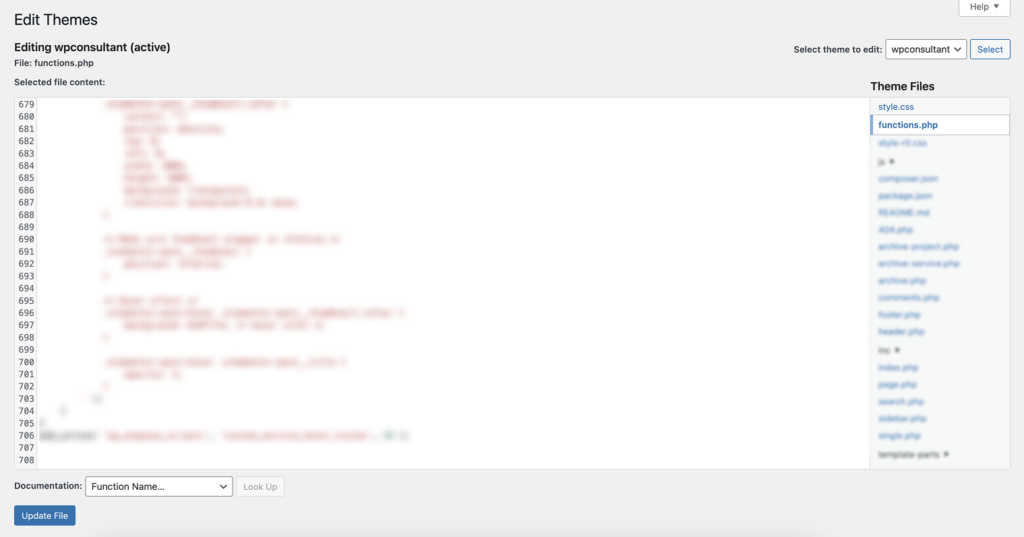
Paste this code in it:
function mywpc_register_portfolio_cpt() {
$labels = array(
‘name’ => ‘Portfolios’,
‘singular_name’ => ‘Portfolio’,
‘add_new_item’ => ‘Add New Portfolio’,
‘edit_item’ => ‘Edit Portfolio’,
‘not_found’ => ‘No portfolios found’,
);
$args = array(
‘labels’ => $labels,
‘public’ => true,
‘has_archive’ => true,
‘supports’ => array( ‘title’, ‘editor’, ‘thumbnail’, ‘custom-fields’ ),
‘rewrite’ => array( ‘slug’ => ‘portfolio’ ),
‘show_in_rest’ => true,
‘menu_icon’ => ‘dashicons-portfolio’,
‘menu_position’ => 5,
);
register_post_type( ‘portfolio’, $args );
}
add_action( ‘init’, ‘mywpc_register_portfolio_cpt’ );
Some things to remember here. The line that says show_in_rest => true is what lets you use the Gutenberg block editor with your custom post types. If you do not include this line your custom post types will only open in the editor. The line that says => true gives your custom post type its special page where all the custom post types are listed which can be found at /portfolio/. It is an idea to always add a unique prefix to the name of your function, such as mywpc_ so that it does not conflict with other code on the website.
Step 3: Add a Custom Taxonomy
Add this below the function:
function mywpc_register_portfolio_taxonomy() {
$args = array(
‘labels’ => array(
‘name’ => ‘Portfolio Categories’,
‘singular_name’ => ‘Portfolio Category’,
),
‘hierarchical’ => true,
‘public’ => true,
‘show_in_rest’ => true,
‘rewrite’ => array( ‘slug’ => ‘portfolio-category’ ),
);
register_taxonomy( ‘portfolio_category’, ‘portfolio’, $args );
}
add_action( ‘init’, ‘mywpc_register_portfolio_taxonomy’ );
Step 4: Update Your Permalinks
Go to: Settings → Permalinks → click Save Changes
Step 5: Create a Template for the Front-End
<?php get_header(); ?>
<?php if ( have_posts() ) : while ( have_posts() ) : the_post(); ?>
<h1><?php the_title(); ?></h1>
<?php the_content(); ?>
<?php endwhile; endif; ?>
<?php get_footer(); ?>
Final Thoughts
- You have full control over every argument and behavior of your custom post types
- There is no plugin to update, break or conflict with others
- Your data persists through theme switches
- Archive pages, custom slugs and Gutenberg support are baked in
Ready to Build Custom Post Types the Right Way?
If you want to:
Set up custom post types and taxonomies for a client site to make dynamic posts
Build a scalable content structure without plugin bloat
Integrate custom post types with WooCommerce, ACF or custom themes
Have a developer do it cleanly quickly and correctly
We’re here to help from a single custom post type, to a full custom architecture.
Contact us today. Lets build something that works exactly the way you need to develop.