If you run a membership website, you’ve probably asked yourself this:
“How to let users first buy a product, then apply subscription against purchase?”
The answer is yes and it’s one of the smartest revenue strategies you can implement.
Instead of forcing users into a subscription immediately, you allow them to start with a product, a toolkit, course, starter kit, event ticket, or physical item and then smoothly transition them into recurring membership.
In this guide, I’ll walk you through how to apply purchases toward a subscription in WordPress using Paid Memberships Pro WooCommerce integration, including:
- Automatically assigning membership levels
- Updating user roles after purchase
- Offering discounts and upgrade credits
- Creating a seamless product-to-subscription funnel
Let’s break it down step by step.
Why This Strategy Works So Well
Customers don’t always want to commit to a subscription right away.
But they will:
- Buy a starter product
- Try a one-time offer
- Join a lower commitment program
Once trust is built, upgrading them to a subscription becomes much easier.
This setup helps you:
✔ Increase average order value
✔ Turn one-time buyers into recurring members
✔ Automate role access and permissions
✔ Build predictable monthly revenue
It’s perfect for:
- Online course creators
- Coaching platforms
- Digital product sellers
- Membership communities
- Hybrid eCommerce + subscription businesses
What You’ll Need
To make this work properly, you need:
- WordPress (https://wordpress.org/)
- WooCommerce (https://woocommerce.com/)
- Paid Memberships Pro (https://www.paidmembershipspro.com/)
- The PMPro WooCommerce Add-On (https://www.paidmembershipspro.com/add-ons/pmpro-woocommerce/)
The add-on connects WooCommerce products directly to membership levels that’s where the magic happens.
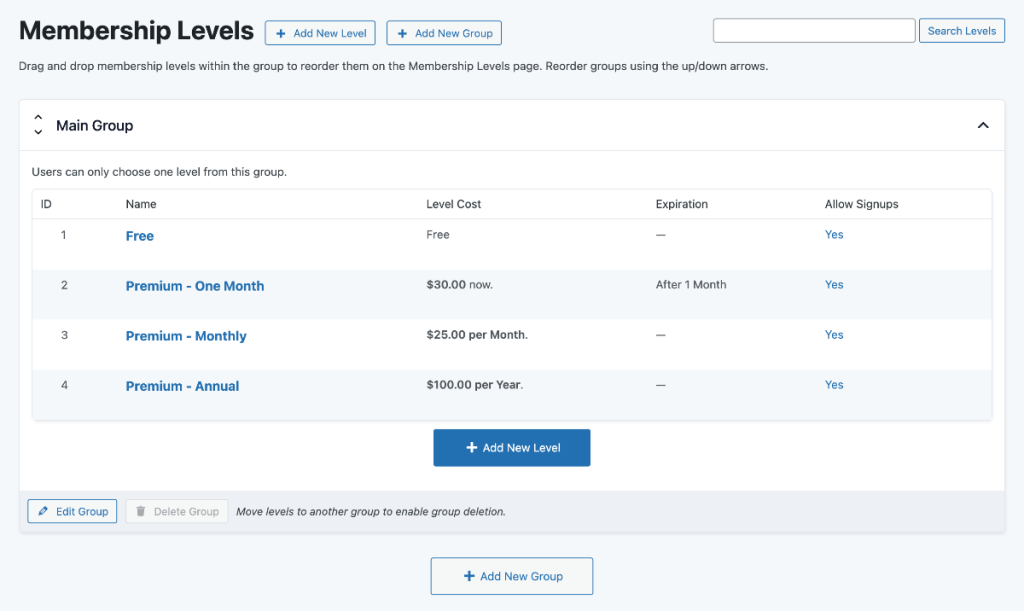
Step 1: Create Your Membership Levels
Go to:
Memberships → Settings → Levels
Create the membership tiers you want, such as:
- Basic Access
- Premium Subscription
- VIP Member
- Course Access
Set billing cycles, pricing, and access rules.
This is where you define how the subscription behaves.
Step 2: Create the Product That Triggers the Membership
Now go to:
Products → Add New
Create the product users will purchase first. Examples:
- Starter Kit
- Business Toolkit
- Online Course
- Event Ticket
- Onboarding Package
This product will either:
- Grant membership access
- Or apply credit toward a subscription
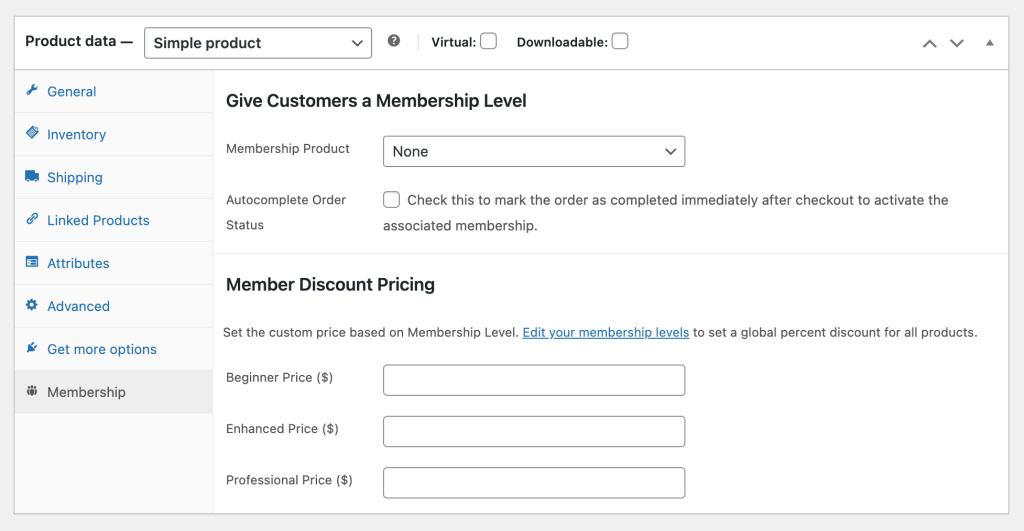
Step 3: Connect the Product to a Membership Level
Inside the product edit screen, you’ll see the membership settings.
Here’s what happens:
When a user buys the product →
The system automatically assigns the selected membership level.
This is the moment where the purchase gets applied toward the subscription.
No manual approval needed. No messy workarounds.
Everything is automated.
Step 4: Automatically Assign User Roles After Purchase
This is one of the most powerful parts.
When the membership level is assigned, WordPress automatically updates the user role.
For example:
- Product: “Pro Toolkit”
- Membership Level: “Premium Access”
- User Role: premium_member
Now you can:
- Restrict content
- Unlock dashboards
- Show exclusive pricing
- Give backend access
- Control custom features
You can even create custom user roles if needed.
This keeps your access system clean and scalable.
Step 5: Offer Discounts or Subscription Credits
Now let’s make it more strategic.
You don’t just want users to subscribe, you want to incentivize them.
Here are some powerful options:
✔ Discounted First Billing Cycle
Give them:
- 50% off first month
- Free first month
- Waived setup fee
✔ Upgrade Credit
If they purchased a product, you can:
- Offer a discount code
- Automatically reduce subscription cost
- Provide limited-time upgrade pricing
✔ Member-Only Product Pricing
Once they become members, you can:
- Show exclusive product prices
- Unlock hidden products
- Automatically apply discounts
This creates a smooth funnel instead of a hard sell.
Example Funnel (Real-World Scenario)
Let’s say:
- The user buys a $149 Starter Business Kit.
- That product assigns a “Business Member” role.
- They receive 50% off Premium Subscription for the first month.
- After 30 days, full recurring billing begins.
You’ve just turned a one-time buyer into a recurring customer — without friction.
That’s how you build lifetime value.
Important: Always Test the Flow
Before going live:
- Test product purchase
- Confirm membership assignment
- Check user role updates
- Test renewals
- Test cancellations
- Clear cache before checking functionality
Small configuration issues can break the flow if not tested properly.
Final Thoughts
Applying purchases toward a subscription in WordPress isn’t just a technical feature — it’s a revenue strategy.
With the Paid Memberships Pro WooCommerce integration, you can:
- Bridge eCommerce and memberships
- Automate access control
- Offer upgrade incentives
- Increase retention
- Build predictable recurring income
When implemented correctly, it creates a seamless journey from buyer → member → long-term customer.
🚀 Ready to Implement This on Your Website?
If you want to:
- Set up product-to-membership automation
- Create a hybrid WooCommerce + subscription system
- Assign custom user roles dynamically
- Build a high-converting upgrade funnel
We can help you implement it the right way — clean, optimized, and scalable.
👉Contact us today and let’s turn your one-time buyers into long-term subscribers.