If you use Forms you know it’s more than just a form builder. It helps you collect data, manage entries and turn submissions into content on your website.
Displaying entries dynamically on pages, posts, sidebars, custom templates, dashboards or custom post types makes your website interactive and data-driven.
In this guide I’ll show you how to display Formidable form entries in WordPress step by step.
Why Dynamic Entries Matter
Imagine running a site where every testimonial, directory listing, event or user-submitted post updates automatically. You don’t have to touch a page your website handles.
Dynamic entries help you:
- Build directories for businesses, team members or listings
- Display. Reviews automatically
- Showcase user-submitted blog posts
- Manage job boards or events
- Create dashboards for team members
- Populate content with page builders like Elementor
Dynamic content saves time. Keeps your website fresh and engaging.
Method 1: Using Views
The easiest way to display entries is with Formidable Views.
Step 1: Install Formidable Forms Pro
Views are part of the Pro version.. Activate it. Make sure your forms are collecting entries.
Step 2: Create a New View
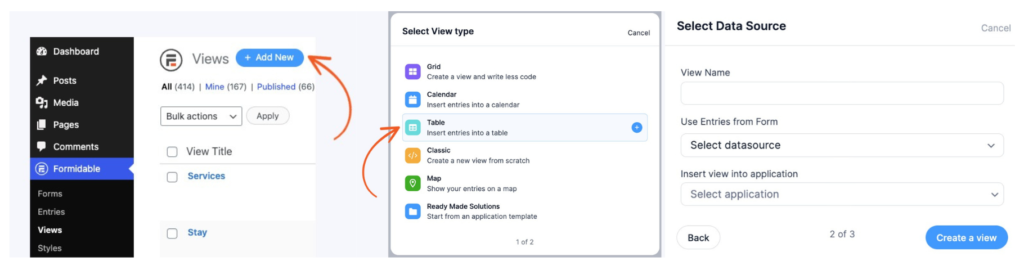
- Go to Formidable → Views
- Click Add New
- Choose a view type: Grid View, Table View or Calendar View
- Select the form whose entries you want to display
Step 3: Customize Your Layout
Use field codes to show form data. For example:
- <h2>[post_title]</h2>
- <p>[description]</p>
- <p>Submitted by: [name]</p>
Style it with CSS or your page builder.
Step 4: Embed the View Anywhere
Copy the shortcode: [display-frm-data id=25]
Paste it where you want the entries to appear:
- Pages or posts
- Sidebar widgets
- Elementor shortcode widgets
- Theme templates
- Popups or landing pages
Method 2: Turn Entries Into WordPress Posts Automatically
If you want submissions to behave like posts Formidable lets you create WordPress posts automatically.
Step 1: Enable Post Creation
- Edit your form
- Go to Settings → Actions & Notifications
- Add Create Post action
- Map fields like Post Title, Content, Featured Image and Author
Step 2: Display Posts Anywhere
Since these’re standard WordPress posts you can:
- Use your themes blog layout
- Display them with Elementor Loop Grid
- Add them to archives or sliders
Method 3: Use Custom Post Types
For setups map entries to Custom Post Types (CPTs).
- Register a CPT like “Properties” or “Team Members”
- Map form entries to that CPT
- Create templates for display
Method 4: Filter Entries Using Shortcodes
Formidable shortcodes allow filtering:
[display-frm-data id=25 limit=5 order_by=created_at order=DESC]
You can limit entries per page show entries for the logged-in user filter by specific field values or sort alphabetically or by date.
Method 5: Integrate Entries With Elementor
If you use Elementor you can:
- Drag the Shortcode Widget
- Paste your View shortcode
- Style the layout as desired
Advanced: Use PHP for Full Control
For developers entries can be displayed directly in theme templates:
echo FrmProEntriesController::get_view_shortcode( array( ‘id’ => 25 ) );
Bonus: Show Entries Based on User Roles
You can restrict entries by logged-in users, specific roles, entry ownership or conditional logic.
Performance Tips
To ensure your dynamic content runs smoothly:
- Use caching
- Paginate large datasets
- Optimize images
- Add schema markup for directories or listings
- Use URLs for posts created from entries
Real-World Examples
Dynamic Formidable entries can power:
- Business directories
- Event listing websites
- Real estate portals
- Testimonial sections
- Customer feedback boards
- Project showcases
- Internal dashboards
Displaying entries anywhere turns your WordPress site from static to dynamic and data-driven. Use Views, auto post creation custom post types, shortcodes, Elementor or PHP to control how and where entries appear.
Bonus: Show Entries Based on User Roles
You can restrict entries by logged-in users, specific roles, entry ownership or conditional logic.
Final Thoughts
Learning how to add entries to any part of WordPress is really powerful. It gives your website a lot of possibilities.
You can make your website more dynamic.
Your website is not a bunch of static pages anymore.
It becomes a website that uses data and can grow easily.
You can use entries in many different ways.
For example:
- Views
- Auto post creation
- Custom post types
- Shortcodes
- Elementor integration
- PHP customization
This means you can show entries exactly where you want and exactly how you want.
You have control over how Formidable entries are displayed on your website.
Formidable entries can be used to make your website more interesting and useful.
Need Help Building Dynamic WordPress Functionality?
If you are planning to build a directory or a membership site or a custom dashboard or an advanced dynamic website using Formidable Forms you should make sure that your WordPress site structure is planned properly from the start.
A planned dynamic WordPress architecture for your WordPress site saves you a lot of time, it improves the performance of your WordPress site and your dynamic WordPress site will scale better.You can partner with WP Consultants to plan and build your WordPress site in an efficient way.